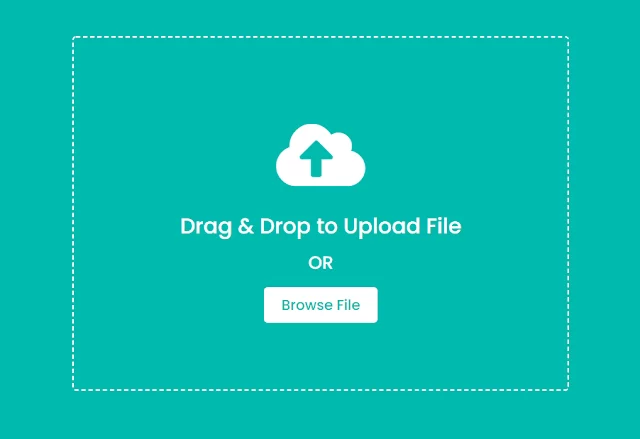
But what if you could build your own custom file converter tool—clean, secure, and personalized for your needs? Even better, what if it allowed users to drag and drop filesinstead of browsing through endless folders?
In this article, we’ll guide you step by step on how to create a file converter tool with drag-and-drop upload, powered by modern web technologies. Plus, we’ll share how courses from Uncodemycan help you master the required skills in Web Development, AI, and Cloud Computingto make your project future-ready.
Why Build a File Converter Tool?
Before diving into the technical details, let’s understand why a custom tool is worth building:
1. Convenience– No need for third-party software or internet-dependent services.
2. Security– Handle sensitive files without uploading them to unknown servers.
3. Customization– Support the exact formats you or your clients need.
4. Scalability– Add features like bulk conversion, compression, and cloud storage.
5. Portfolio Boost– A project like this showcases strong skills for job seekers.
Core Features of the File Converter Tool
To make the tool user-friendly and efficient, here are the essential features:
- Drag-and-Drop Upload→ Users can simply drop files instead of clicking through file explorers.
- Multi-format Conversion→ e.g., DOCX → PDF, JPG → PNG, MP4 → MP3, etc.
- Preview Before Conversion→ Thumbnails for images or text previews.
- Progress Bar & Notifications→ Show users that conversions are happening in real-time.
- Download Option→ Users can easily download converted files.
- Cross-platform Support→ Works on desktop and mobile browsers.
Step 1: Plan Your Tech Stack
To build such a tool, you’ll need both frontendand backendskills.
- Frontend (User Interface):
- React.js (for drag-and-drop UI and responsive design)
- TailwindCSS (for modern styling)
- FilePond or Dropzone.js (for drag-and-drop file handling)
- Backend (Conversion Logic):
- Node.js with Express.js
- Libraries like sharp (for images), ffmpeg (for audio/video), and pdf-lib (for PDF manipulation).
- Optional (Cloud Features):
- AWS S3, Firebase, or Google Cloud Storage for saving files.
💡 Pro Tip: If you’re new to these technologies, Uncodemy’s Full Stack Web Development Coursecovers React.js, Node.js, and MongoDB in a structured way.
Step 2: Build the Drag-and-Drop UI
A drag-and-drop interface improves usability significantly. Here’s the flow:
1. Users drag files into a designated drop area.
2. The tool validates file type and size.
3. Files are displayed in a preview list.
Libraries to use:
- Dropzone.js– Lightweight and customizable.
- React Dropzone– Perfect for React-based projects.
Copy Code
Example (React + Dropzone):import{ useDropzone} from 'react-dropzone';function FileUpload(){ const onDrop=(acceptedFiles)=>{ console.log(acceptedFiles); }; const{ getRootProps, getInputProps}=useDropzone({ onDrop}); return ( <div{...getRootProps()} className="border-dashed border-2 p-6 text-center"> <input{...getInputProps()} /> <p>Drag & Drop files here, or click to select</p> </div> )}export default FileUpload;
Step 3: Handle File Conversion in the Backend
Once files are uploaded, your backend needs to process them. For example:
- Image Conversion→ sharp library
- PDF Generation→ pdf-lib
- Video/Audio→ ffmpeg
Copy Code
Example (Image Conversion with Node.js + Sharp):const sharp=require('sharp');sharp('input.jpg') .png() .toFile('output.png') .then(()=> console.log("Conversion successful")) .catch(err=> console.error(err));Step 4: Provide Download Option
After conversion, the converted file should be available for download. You can:
- Generate a download link (/download/:fileId).
- Store files temporarily in the server or cloud storage.
- Auto-delete after a set time (e.g., 24 hours).
Step 5: Enhance with AI Features
To make your tool smarter, you can integrate AI:
- AI File Suggestions→ If a user uploads a .docx, suggest converting to .pdf.
- Smart Compression→ Use AI to optimize image or video size without losing quality.
- OCR (Optical Character Recognition)→ Convert scanned PDFs into editable text.
Uncodemy offers an AI & Machine Learning Coursethat covers deep learning, OCR, and computer vision—skills you can apply directly here.
Step 6: Deploy Your File Converter
You can host your project online for public use:
- Frontend Hosting→ Netlify, Vercel
- Backend Hosting→ Heroku, Render, AWS Lambda
- Cloud Storage→ AWS S3 or Firebase
For professional deployment, Uncodemy’s Cloud Computing Courseteaches AWS, Azure, and DevOps concepts that make your project scalable and production-ready.
Real-World Use Cases
- Students→ Convert notes from Word to PDF for easy sharing.
- Businesses→ Convert client files securely without relying on third-party apps.
- Content Creators→ Resize, compress, or convert images/videos for platforms.
- Legal Firms→ Convert scanned documents into searchable PDFs.
Career Benefits of Building This Project
Building such a tool is not just a fun side project, but also:
1. Strengthens your resumewith a real-world project.
2. Demonstrates full-stack expertise(UI, backend, and deployment).
3. Prepares you for freelance opportunities—many businesses need secure, custom file tools.
4. Opens doors in tech roleslike Software Developer, AI Engineer, or Cloud Specialist.
💡 To level up, Uncodemy’s Data Scienceand Full Stack Development Coursescan help you turn this into a professional-grade solution.
Conclusion
File conversion is a universal need, and creating your own drag-and-drop file converteris an excellent way to apply modern web technologies. From frontend (React)to backend (Node.js + conversion libraries)and deployment (Cloud hosting), this project gives you hands-on experience across the stack.
If you’re new to programming, don’t worry—platforms like Uncodemyoffer structured courses in Full Stack Web Development, AI, Data Science, and Cloud Computingthat provide all the skills you need to build projects like this and even take them to production.
So, why rely on clunky online converters when you can build your own, smarter file converter tool? Start experimenting today, and watch your skills—and career opportunities—grow.