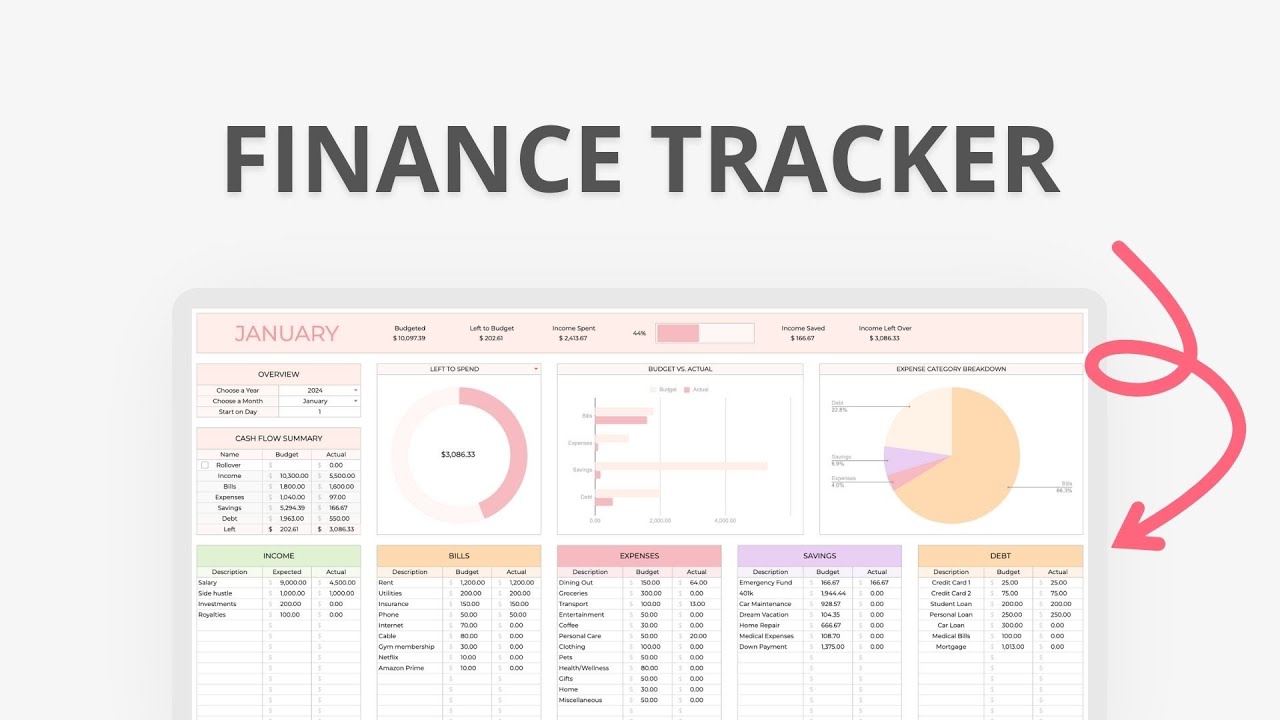
This approach is free, flexible, and accessible from anywhere. In this guide, we will walk through exactly how to set up a finance tracker that is tailored to your needs.
Why Use Google App Script for Finance Tracking
Google App Script is a cloud based scripting language based on JavaScript that integrates smoothly with Google Workspace tools. When used with Google Sheets, it allows you to automate tasks, add custom features, and even connect to other services.
For personal finance, this means you can set up automatic expense categorization, generate monthly summaries, and create alerts when you are close to exceeding your budget. Unlike third party apps, everything stays in your Google account, giving you more privacy and control.
Benefits of Building Your Own Finance Tracker
Before we start, here are the main advantages of creating your own tracker:
- Customization – You decide exactly how your tracker works.
- No Fees – No monthly charges to use your own tool.
- Privacy – All your data stays in your account.
- Automation – Repetitive tasks can be handled automatically.
- Accessibility – Works on any device with internet access.
Step 1: Plan Your Tracker
Think about what you want your tracker to do. Common features include:
- Expense logging
- Income tracking
- Category wise spending summaries
- Monthly budget monitoring
- Savings goal tracking
A good starting point is to sketch out your tracker layout. A simple version could have columns for Date, Description, Category, Amount, Payment Method, and Notes.
Step 2: Create Your Google Sheet
- Open Google Sheets and create a new spreadsheet.
- Name it Personal Finance Tracker.
- Add column headers in row one:
| Date | Description | Category | Amount | Payment Method | Notes |
Format the Date column as a date field and the Amount column as a currency field.
Step 3: Open Google App Script
To access the script editor:
- In your sheet, go to Extensions → App Script.
- A new tab will open with the script editor where you can start writing functions.
Step 4: Write a Function to Add Expenses
Let us start with a basic function to add a new expense automatically.
Copy Code
javascript

CopyEdit

function addExpense(date, description, category, amount, method, notes) {

  var sheet = SpreadsheetApp.getActiveSpreadsheet().getActiveSheet();

  sheet.appendRow([date, description, category, amount, method, notes]);

}


You could run:

javascript

CopyEdit

addExpense(new Date(), "Groceries", "Food", 1500, "Card", "Weekly shopping");
And the row would be added instantly.
Step 5: Automate the Date Entry
Typing the date for every expense can be tedious. Let us make it automatic.
Copy Code
javascript

CopyEdit

function addExpenseAutoDate(description, category, amount, method, notes) {

  var sheet = SpreadsheetApp.getActiveSpreadsheet().getActiveSheet();

  var today = new Date();

  sheet.appendRow([today, description, category, amount, method, notes]);

}
Now you only provide the other details.
Step 6: Add Category Dropdown
To avoid typos in categories:
- Select the Category column.
- Go to Data → Data validation.
- Choose List of items and enter Food, Rent, Utilities, Entertainment, Travel, Miscellaneous.
Step 7: Generate Monthly Summaries
Use a script to calculate total spending per category.
Copy Code
javascript

CopyEdit

function generateMonthlySummary() {

  var sheet = SpreadsheetApp.getActiveSpreadsheet().getActiveSheet();

  var data = sheet.getDataRange().getValues();

  var summary = {};


  for (var i = 1; i < data.length; i++) {

    var category = data[i][2];

    var amount = data[i][3];

    if (!summary[category]) {

      summary[category] = 0;

    }

    summary[category] += amount;

  }


  var summarySheet = SpreadsheetApp.getActiveSpreadsheet().getSheetByName("Summary");

  if (!summarySheet) {

    summarySheet = SpreadsheetApp.getActiveSpreadsheet().insertSheet("Summary");

  }


  summarySheet.clear();

  summarySheet.appendRow(["Category", "Total"]);


  for (var cat in summary) {

    summarySheet.appendRow([cat, summary[cat]]);

  }

}
Step 8: Automate Summary Generation
Set a trigger to run the summary at the end of each month.
- In App Script, click Triggers.
- Add a trigger for generateMonthlySummary.
- Choose Time driven → Month timer → End of month.
Step 9: Add a Budget Alert
Get an email if you go over your budget.
Copy Code
javascript

CopyEdit

function checkBudgetLimit() {

  var sheet = SpreadsheetApp.getActiveSpreadsheet().getActiveSheet();

  var data = sheet.getDataRange().getValues();

  var total = 0;


  for (var i = 1; i < data.length; i++) {

    total += data[i][3];

  }


  var budgetLimit = 50000;

  if (total > budgetLimit) {

    MailApp.sendEmail("youremail@example.com", "Budget Alert", "You have exceeded your monthly budget.");

  }

}
Schedule this to run daily.
Step 10: Add a Custom Menu
Make it easier to use your tracker with a menu.
Copy Code
javascript

CopyEdit

function onOpen() {

  var ui = SpreadsheetApp.getUi();

  ui.createMenu("Finance Tracker")

    .addItem("Add Expense", "promptAddExpense")

    .addItem("Generate Summary", "generateMonthlySummary")

    .addToUi();

}


function promptAddExpense() {

  var ui = SpreadsheetApp.getUi();

  var response = ui.prompt("Enter expense details (Description, Category, Amount, Method, Notes)", ui.ButtonSet.OK_CANCEL);


  if (response.getSelectedButton() == ui.Button.OK) {

    var parts = response.getResponseText().split(",");

    addExpenseAutoDate(parts[0], parts[1], parseFloat(parts[2]), parts[3], parts[4]);

  }

}
Step 11: Secure Your Data
Since your sheet contains financial information:
- Use a strong password.
- Enable two factor authentication.
- Avoid sharing the sheet publicly.
Step 12: Test and Improve
Enter some test expenses. Check if:
- Dates appear automatically.
- Summaries are accurate.
- Alerts are sent correctly.
- The menu works as intended.
If anything fails, adjust your scripts.
Expanding Your Tracker
Once you have a working tracker, you can add:
- Charts for visual insights.
- Integration with Google Forms for quick mobile entry.
- Currency conversion for international spending.
- Goal progress tracking.
Advantages of This Approach
By now, your tracker is more than a spreadsheet. It is:
- Fully customizable.
- Automated to save time.
- Private and secure.
- Easy to access on any device.
Real World Uses
- Students can manage pocket money and avoid overspending.
- Freelancers can track income and expenses for tax purposes.
- Families can monitor household budgets.
- Travelers can track trip expenses in real time.
Why Learn Google App Script
Google App Script is not just for finance trackers. Once you understand it, you can:
- Automate repetitive work.
- Create tools that boost productivity.
- Integrate different Google services.
-
It is a valuable skill for both personal and professional use.
Learn with Uncodemy
If you want structured learning, Uncodemy offers excellent courses in programming and automation. Their Google App Script and Automation training covers everything from beginner concepts to advanced integrations. You will work on hands on projects like this finance tracker, making it easier to apply what you learn in real life.
With expert guidance, interactive lessons, and practical exercises, Uncodemy ensures you can confidently build your own automated tools without relying on expensive software.
Final Thoughts
Building a personal finance tracker using Google App Script gives you total control over your financial management. You can track expenses, monitor budgets, and get automatic alerts, all inside a tool you designed.
This approach combines the flexibility of Google Sheets with the automation power of App Script, making it both powerful and easy to use. Whether you keep it simple or expand it with advanced features, the result is a finance tracker that truly works for you.
And with the help of an Uncodemy course, you can master these skills, not just for personal finance, but for a variety of automation projects that can save time, improve efficiency, and make technology work for you.