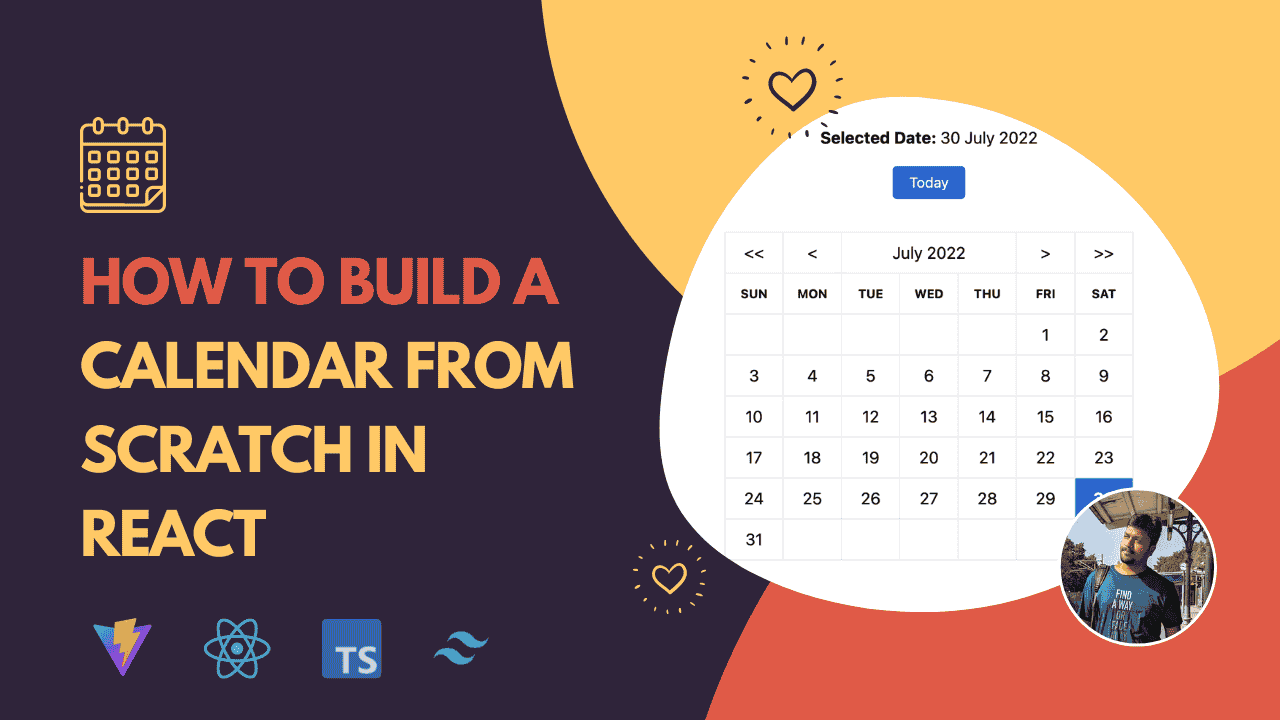
In this article, we will explore how to build a smart calendar app step by step, why React and Firebase are a perfect combination, and the skills you will gain while working on this project. Whether you are a beginner aiming to build a real world project or an experienced developer brushing up on practical skills, this guide will give you a comprehensive overview.
Why Build a Smart Calendar App
Before diving into technical details, let us understand why building such an app matters. A smart calendar app goes beyond basic scheduling. It can integrate features such as reminders, recurring events, notifications, and cloud storage. Users can access their events across devices, sync data in real time, and even collaborate with others.
For instance, students can use it to track assignment deadlines, professionals can schedule meetings with automatic reminders, and teams can share calendars to stay on the same page. The idea is to create a tool that simplifies life rather than complicating it.
Why Use React and Firebase
React for Frontend
React has become the most popular library for building interactive user interfaces. With its component based structure, React makes it easy to create reusable UI elements. For a calendar app, components like event cards, monthly and weekly views, and form inputs for scheduling can be built as separate pieces and combined into a complete application.
React’s state management also ensures that when a user adds or edits an event, the interface updates smoothly without unnecessary reloads. This improves the user experience significantly.
Firebase for Backend
Firebase, powered by Google, offers a complete backend as a service. It provides authentication, cloud storage, hosting, and most importantly, a real time database and Firestore. These features make Firebase ideal for a calendar app where updates need to be reflected instantly across devices.
With Firebase authentication, users can sign in securely with Google or email accounts. With Firestore, events are stored in a cloud database and synchronized in real time, so users never have to worry about losing their schedules.
The combination of React and Firebase is powerful because React handles the dynamic and interactive frontend while Firebase takes care of the backend complexity with minimal setup.
Features of the Smart Calendar App
To make the app both practical and smart, here are some key features we can include:
- User Authentication: Allow sign up and login using Firebase authentication.
- Event Management: Users can add, update, or delete events.
- Monthly and Weekly Views: Display events in both calendar styles.
- Reminders and Notifications: Notify users before an event starts.
- Recurring Events: Allow users to set repeating events like weekly meetings.
- Cloud Sync: Store all data in Firebase so users can access it across devices.
- Search and Filters: Easily find specific events by date or keyword.
- Responsive Design: Ensure the app works smoothly on mobile and desktop devices.
Project Setup
Step 1: Create React App
First, set up a React project using Create React App or Vite. For beginners, Create React App is simpler.
Copy Code
npx create-react-app smart-calendar

cd smart-calendar

npm start
This will start the development server and open the app in your browser.
Step 2: Install Dependencies
For our app, we need some additional packages:
npm install firebase react-router-dom date-fns
- firebase: To connect React with Firebase services.
- react-router-dom: For navigation between login, signup, and calendar pages.
- date-fns: A lightweight library to format and manipulate dates.
Setting Up Firebase
- Go to the Firebase console and create a new project.
- Enable Authentication and choose Google or Email sign in.
- Create a Firestore database in test mode.
- Copy the Firebase configuration object.
Copy Code
In your React app, create a firebase.js file and add:

import { initializeApp } from "firebase/app";

import { getAuth } from "firebase/auth";

import { getFirestore } from "firebase/firestore";


const firebaseConfig = {

  apiKey: "YOUR_API_KEY",

  authDomain: "YOUR_PROJECT_ID.firebaseapp.com",

  projectId: "YOUR_PROJECT_ID",

  storageBucket: "YOUR_PROJECT_ID.appspot.com",

  messagingSenderId: "YOUR_SENDER_ID",

  appId: "YOUR_APP_ID"

};


const app = initializeApp(firebaseConfig);


export const auth = getAuth(app);

export const db = getFirestore(app);
Implementing Authentication
Use Firebase authentication for user login and registration. For example, a signup component might look like this:
Copy Code
import { useState } from "react";

import { createUserWithEmailAndPassword } from "firebase/auth";

import { auth } from "./firebase";


function Signup() {

  const [email, setEmail] = useState("");

  const [password, setPassword] = useState("");


  const handleSignup = async () => {

    try {

      await createUserWithEmailAndPassword(auth, email, password);

      alert("Signup successful");

    } catch (error) {

      console.error(error);

    }

  };


  return (

    <div>

      <input type="email" placeholder="Email" onChange={(e) => setEmail(e.target.value)} />

      <input type="password" placeholder="Password" onChange={(e) => setPassword(e.target.value)} />

      <button onClick={handleSignup}>Sign Up</button>

    </div>

  );

}


export default Signup;
This ensures that only authenticated users can access their personalized calendars.
Storing Events in Firestore
Events can be stored in Firestore with fields like title, date, time, and description. For example:
Copy Code
import { collection, addDoc } from "firebase/firestore";

import { db } from "./firebase";


const addEvent = async (event) => {

  try {

    await addDoc(collection(db, "events"), event);

  } catch (error) {

    console.error("Error adding event:", error);

  }

};
When users add an event, it is saved in the cloud and instantly available on all their devices.
Displaying the Calendar
Using React, we can create a calendar component that displays events. For instance, we can use date functions to render the current month and highlight event dates. Each day can be clickable, opening a modal with the events for that day.
Copy Code
function CalendarView({ events }) {

  return (

    <div>

      {events.map((event, index) => (

        <div key={index}>

          <h3>{event.title}</h3>

          <p>{event.date}</p>

        </div>

      ))}

    </div>

  );

}
This is a simplified example, but with styling and conditional rendering, you can create a professional looking monthly or weekly calendar.
Adding Smart Features
Once the basic app is functional, you can enhance it with smart features:
- Reminders: Use browser notifications or Firebase Cloud Messaging to remind users of upcoming events.
- Recurring Events: Add a repeat option that automatically generates events at set intervals.
- Search and Filters: Provide a search bar that filters events by title or date.
- Collaboration: Allow users to share calendars with others by storing permissions in Firestore.
Benefits of Building This Project
Working on this project helps you master several important concepts:
- Building reusable components in React
- State management and event handling
- Authentication and authorization using Firebase
- Real time database management with Firestore
- Working with date and time data
- Deploying a full stack application
These are essential skills for any developer aspiring to work on modern web applications.
Learning Path with Uncodemy
If you want to build such projects and gain industry relevant skills, joining a structured course can make a huge difference. Uncodemy offers a comprehensive Full Stack Web Development course in Ghaziabad that covers React, Firebase, JavaScript, Node, and many other tools required to become a skilled developer. With hands on projects, mentorship, and real world case studies, you can go beyond theory and actually implement what you learn.
This smart calendar app is just one example of the type of practical projects that can boost your portfolio and impress recruiters.
Deployment
Once the app is ready, you can deploy it using Firebase Hosting or other platforms like Netlify. With Firebase Hosting, deployment is simple:
Copy Code
npm run build

firebase deploy
This makes the app live on a secure domain accessible from anywhere.
Conclusion
Building a smart calendar app using React and Firebase is a fantastic way to practice modern web development. You learn how to design a user friendly interface, manage real time data, and add smart features that make life easier for users. By the end of the project, you will not only have a working application but also a deeper understanding of how frontend and backend technologies work together.
React provides the flexibility for building dynamic and responsive interfaces, while Firebase simplifies the backend by offering authentication, real time database, and hosting services out of the box. Together, they empower you to create powerful apps without complex infrastructure.
If you are passionate about mastering these technologies, check out the Full Stack Development course from Uncodemy to strengthen your skills and build more real world projects. With consistent practice and learning, you will be ready to take on challenging roles in the tech industry.
A smart calendar is more than just a project. It is a step toward becoming a problem solver who can build tools that make people’s lives better. So start coding today and bring your own version of a smart calendar to life.