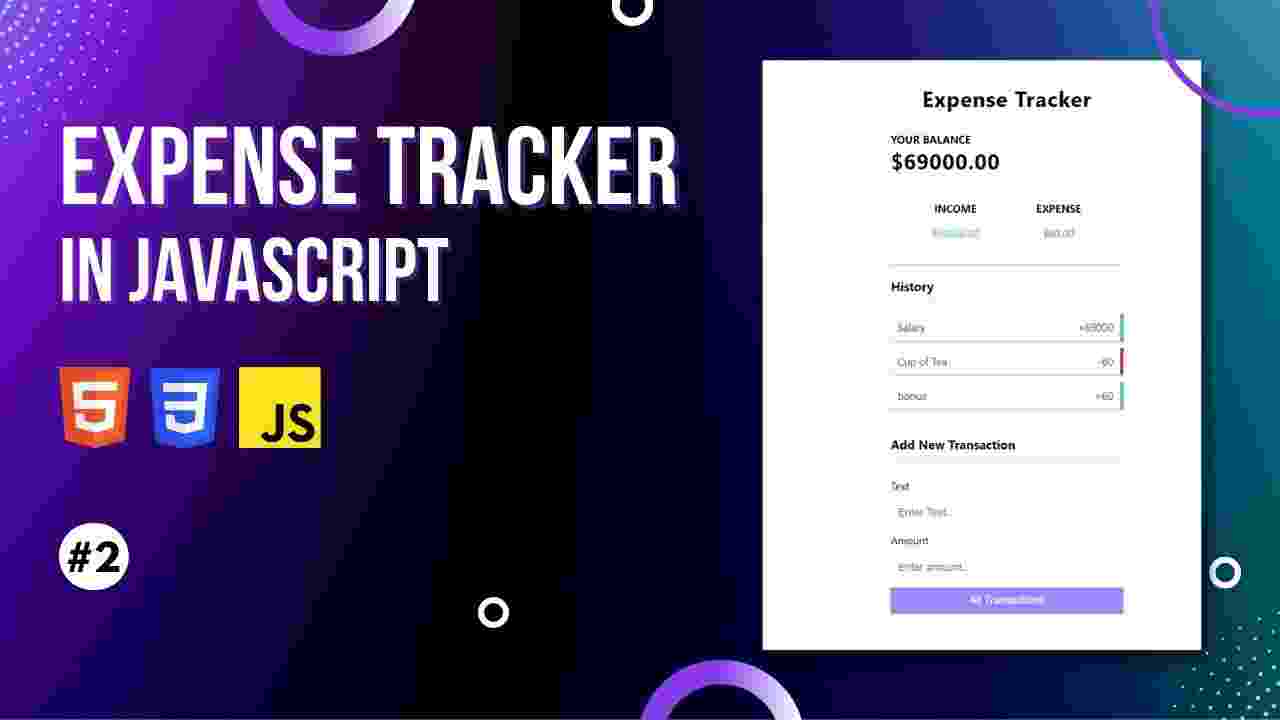
HTML, CSS and JavaScript: Building an Expense Tracker
Personal finances play a vital role in ensuring financial health, and one of the ways to be successful in this is to monitor spending money. Creating your personal expense tracking system with HTML, CSS and JavaScript can be a good experience and make you more focused on what you spend freely with money. This tutorial will take you through the process to develop the working web application which will enable you to add, read and delete transactions as well as show your income, expenses and overall balance. This project is a wonderful chance to level up your web development skills, introducing such concepts as array and DOM handling and local storage.
Prerequisites
Prior to getting started with creating your expense tracker, it is advisable to be fundamental in HTML, CSS and JavaScript. It would help to have some familiarity with ideas like form handling, event handling, and DOM manipulation. Testing your application also requires a text editor, as well as a modern web browser, e.g. Visual Studio Code.
Part 1: HTML structure (index.html)
The first one is to build a simple HTML document or file, as it is going to be the blueprint of your expense tracker. This file will constitute the title, large heading, box to enter expenses and one box to show the list of expenditures.
Document type and metadata:Start with the main HTML5 declaration, clarify the language of the document as English and then use UTF-8 as the encoding of the characters. The responsiveness in mobile devices is guaranteed with the viewport meta tag. The page title will be called Expense Tracker. It is also possible to link with external stylesheets and Google fonts to obtain a better styling.
Container and Main Heading:To be able to layout all visible content of the page, there will be a div with the class container. At the top it will indicate a main heading with the text, <h1>Expense Tracker</h1>.
Balance Section:This part, which is most often a div having the class balance will show your total balance, which is initially set to "$0.00". To guarantee an update of this value you can use JavaScript, which updates this value using the id="balance" attribute to ensure the value is dynamic.
Income and Expense Section:Expense and income information is grouped in a div of the class income-expense. It will have a series of paragraphs with ID such as income and expense, both of which have a starting value of "$0.00" which will be dynamically updated by JavaScript.
Add Transaction Form:This is the form which is hosted inside a div whose class is form, it is used to add transactions. It will generally have input fields of a description (text control), an amount (number control) and a button to add the transaction. The amount input usually mandates negative value as expenditure and positive as an income. The addition of a transaction will be triggered with a button with id="add-transaction".
Transaction History:The history of the transactions is represented by a div with the history class which is often represented in a table form. The table will include the column names of date, description, amount, and action buttons. The element as follows id="list" will start out empty because JavaScript will add the rows, one per transaction.
Adding JavaScript to your page: Finishing off: Then just add your JavaScript file (eg script.js) at the bottom of the <body> section. Within this file all the dynamic functions of the application shall be processed.
Step 2: CSS make over (style.css)
When the HTML is worked out, you will style it up with CSS to make your expense tracker look nice and modern.
Global Styles:Unify font family (e.g. 'Poppins', sans-serif) and light grayish-blue background color to have a clean and modern look and feel. You can as well specify a default text color and default margins / padding to have the same amount of spacing.
Container Styling:Align the central container to the center, restrict its maximum width to a certain number of pixels, apply a white background and border-radius to the edges of the box, as well as a low box shadow to create depth.
Headings:All headings should be centered and it can be of a bright color like purple especially the <h1>. Clear default margins to have the same spacing.
Balance Section:Put what is the total balance in bold letters and increase font size so that one could see it easily.
Income and Expense Section:Flexbox should be used to space the income and expense boxes side by side equally. Individual boxes should be styled with light gray background color, rounded corner, and a shadow. You may set expenses visually apart by assigning them a light red background.
Form Styling: Vertically stack forms: flex-direction:column. Input fields in styles with padding, rounded edges, and neutral colour of the border. Include a focus effect and modify the border color purple in response to input-field interaction by a user. The main Add Transaction button may be purple in color, white in text, corner rounded and a hover effect of increasing the darkness of the background background to achieve interactivity.
History Section and Table Styling:There can be a space above the transaction history table. Format the table to have a clean aesthetic, minimalistic design with rounded edges, and a shadow. The cells in a table need to be padded and there should be a light gray line that delineates between them. Show positive values and negative ones in green and red respectively to identify them easily.
Media Queries:The responsive design should be achieved with the help of media queries thus adapting the layout and space on smaller screens to make them usable on different devices.
Step 3: Functions with JavaScript (script.js)
In the JavaScript file you will set up the dynamic part of your expense tracker as how to add/remove/show transactions, update balance and what/where/why to store the data in the local storage of the browser.
Variables and Setup:To get different HTML elements based on their IDs I use document.getElementById to assign each to a constant. Declare an array of transactions to hold all objects of transaction. This array must be filled by retrieving data in localStorage but in the absence of this, it is filled with blank data.
updateValues() Function:It is the function that updates the balance, total income and total expenses shown on the page. These values are computed by mapping the amounts of all transactions after which reduce and filter methods are used to have a sum of positive amounts or negative amounts (converted to positive) to represent income and expenses respectively. Lastly, it changes the textContent of such DOM elements.
addTransactionDOM(transaction) Function:This is used to add a row of a new transaction to the table financial-transaction-history. It generates a new table row element (<tr>) and sets the innerHTML of the row to the date, description, amount (styled as an expense when negative) and button to clear the transaction. Then the row is added to the list of transactions (list).
removeTransaction(id) Function: This is the general-purpose function that removes the transaction in this list through the use of ID. It removes the transaction of the given id from the transactions array and then it invokes functions updateLocalStorage() and updateUI() to update the display and save changes.
updateUI() Function:This is the function that will update the entire user interface each time there is a change. It resets any previous transactions, and loops through the transactions array, triggering an addTransactionDOM call on each transaction to update the list. It also invokes updateValues() to update the balance, income and expense text fields.
updateLocalStorage() Function:Functions are used to save transactions array into browser local storage as a JSON data type. This makes sure that the information is not lost unless the user closes the browser.
Add Transaction Event Listener:The Add Transaction button (addTransaction) has an event listener added to it so that it can add a new transaction when clicked. It reads and checks any valid input regarding description and amount. A new object of transactions is made with individual ID, description, and amount and the date today. This new transaction is the one which is added into the transactions array. Lastly, the updateLocalStorage() and updateUI() functions are called and values present in the input fields are emptied.
Initialization (init()):when the application is loaded it calls init() to load the application depending on transactions in the localStorage and update the display in the page.
Using these explained steps can enable you to build a working expense tracker that will assist you in budgeting and learning more about the web development process.
Conclusion
Creating a web-based expense tracker by using HTML, CSS and JavaScript is a great project to cement your web development knowledge whether it is user interface design or data persistence. Though this guide has offered a comprehensive view of the technical procedures, there is much more to learn and for individuals who want to understand more and create more career opportunities in the IT field, Uncodemy boasts different courses that are relevant. CCU Uncodemy offers courses on Frontend Development, Full Stack Development, Data Science, and Software Testing, which could train a person to acquire skills that could be useful to work-related careers and career advancement. They focus on applied, on-the-job training, provide placement, and they possess industry trained instructors.