By the end of this guide, you’ll know how to:
- Create a simple website structure with HTML.
- Style it beautifully using CSS.
- Understand the logic behind web layouts.
Step 1: Understanding the Basics
Before we start building, let’s get familiar with the two core technologies:
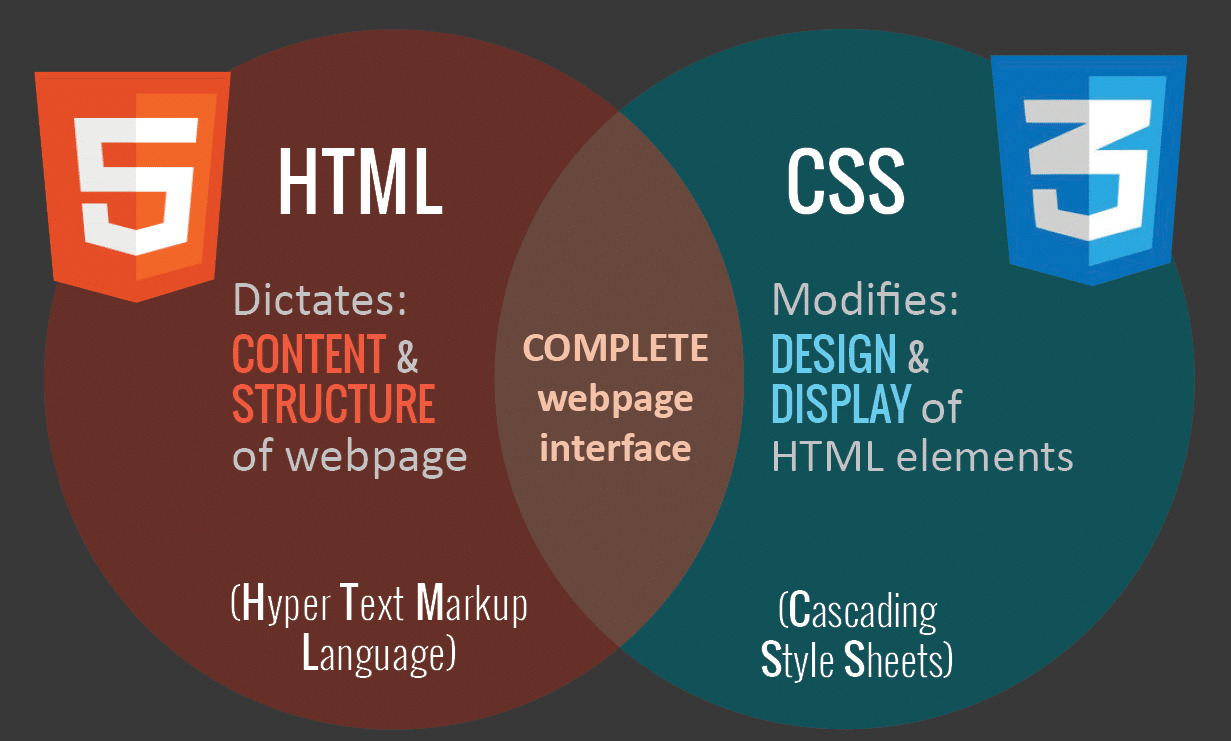
- HTML (HyperText Markup Language): Defines the content and structure of a webpage.
- CSS (Cascading Style Sheets): Controls how the HTML looks—colors, fonts, layouts, etc.
Think of HTML as the bricks and CSS as the paint and decoration.
Step 2: Setting Up Your Tools
You don’t need expensive software to build websites. All you need is:
1. A code editor – Free tools like VS Code or Sublime Text are perfect.
2. A web browser – Chrome, Firefox, or Edge.
3. A folder on your computer to store project files.
Step 3: Creating Your First HTML File
Let’s make a new file called index.html.
Here’s a basic HTML structure:
Copy Code
<!DOCTYPE html>

<html>

<head>

    <meta charset="UTF-8">

    <meta name="viewport" content="width=device-width, initial-scale=1.0">

    <title>My First Website</title>

</head>

<body>

    <h1>Welcome to My Website!</h1>

    <p>This is my very first web page created with HTML and CSS.</p>

</body>

</html>
Explanation:
- <!DOCTYPE html>: Tells the browser this is an HTML5 document.
- <head>: Contains meta info like the title and page settings.
- <body>: Holds the visible content.
Save this file, double-click it, and it will open in your browser.
Step 4: Adding More HTML Content
We can add headings, paragraphs, lists, and links:
Copy Code
<h2>About Me</h2>

<p>Hi, I’m a beginner web developer learning HTML and CSS.</p>

<h2>My Hobbies</h2>

<ul>

    <li>Coding</li>

    <li>Reading</li>

    <li>Traveling</li>

</ul>

<h2>Contact Me</h2>

<p>Email: <a href="mailto:example@email.com">example@email.com</a></p>
Tips:
- <h1> to <h6> are headings (biggest to smallest).
- <p> is for paragraphs.
- <ul> is an unordered list; <li> is each list item.
- <a> creates links.
Step 5: Adding Images
Let’s make your page more interesting with an image:
Copy Code
<img src="profile.jpg" alt="My Profile Picture" width="200">
- src is the image location.
- alt describes the image for accessibility and SEO.
- width sets image size.
Step 6: Creating a CSS File
Now, let’s style our website.
Make a new file called style.css in the same folder:
Copy Code
body {

    font-family: Arial, sans-serif;

    background-color: #f8f9fa;

    margin: 20px;

}

h1 {

    color: #2c3e50;

}

h2 {

    color: #34495e;

}

p {

    line-height: 1.6;

}

ul {

    list-style-type: square;

}

a {

    color: #3498db;

    text-decoration: none;

}

a:hover {

    text-decoration: underline;

}
Step 7: Linking CSS to HTML
In your index.html, link the CSS file inside <head>:
Copy Code
<link rel="stylesheet" href="style.css">
This tells the browser to apply your styles to the HTML.
Step 8: Adding a Navigation Bar
Let’s create a simple menu:
Copy Code
<nav>

    <a href="#about">About</a>

    <a href="#hobbies">Hobbies</a>

    <a href="#contact">Contact</a>

</nav>
CSS for navigation:
Copy Code
nav {

    background-color: #333;

    padding: 10px;

}

nav a {

    color: white;

    margin-right: 15px;

}

nav a:hover {

    color: yellow;

}
Step 9: Adding a Footer
Copy Code
<footer>
<p>© 2026 My First Website. All Rights Reserved.</p>
</footer>
CSS for footer:
Copy Code
footer {

    background-color: #2c3e50;

    color: white;

    padding: 10px;

    text-align: center;

    margin-top: 20px;

}
Step 10: Improving Layout with CSS
We can make sections stand out:
Copy Code
section {

    background: white;

    padding: 15px;

    margin-bottom: 20px;

    border-radius: 5px;

}
And in HTML:
Copy Code
<section id="about">

    <h2>About Me</h2>

    <p>Hi, I’m a beginner web developer learning HTML and CSS.</p>

</section>

<section id="hobbies">

    <h2>My Hobbies</h2>

    <ul>

        <li>Coding</li>

        <li>Reading</li>

        <li>Traveling</li>

    </ul>

</section>

<section id="contact">

    <h2>Contact Me</h2>

    <p>Email: <a href="mailto:example@email.com">example@email.com</a></p>

</section>
Step 11: Making It Responsive
To make your site look good on phones:
Copy Code
@media (max-width: 600px) {

    body {

        margin: 10px;

    }

    nav a {

        display: block;

        margin: 5px 0;

    }

}
This ensures your layout adjusts for smaller screens.
Step 12: Testing Your Website
- Open the index.html in multiple browsers.
- Resize the window to check mobile view.
- Fix any broken links or images.
Step 13: Publishing Your Website
You can make your site live using:
- GitHub Pages (Free hosting)
- Netlify (Free & beginner-friendly)
- Vercel (Great for static sites)
Simply upload your HTML and CSS files and get a live link.
Pro Tips for Beginners
1. Keep it simple – Avoid trying too many advanced effects in your first project.
2. Validate your HTML – Use W3C Validator.
3. Use comments – In HTML: <!-- comment --> and in CSS: /* comment */.
4. Learn by doing – Practice by building small sections and expanding them.
Why Learn HTML & CSS ?
Even with AI-powered website builders, HTML and CSS remain essential because:
- They give you full control over design.
- They make you adaptable to any project.
- They’re the foundation for learning JavaScript and other advanced technologies.
If you’re serious about a career in web development, mastering HTML & CSS is step one.
Learn HTML & CSS with Expert Guidance
If you prefer structured learning, platforms like Uncodemy offer Front-End Development courses with hands-on projects.
You’ll go beyond static pages to building interactive, responsive websites—preparing you for real-world jobs.
Final Words
You’ve just taken the first step into the world of web development.
By learning HTML & CSS, you now have the skills to turn your ideas into websites. Keep experimenting, keep building, and soon you’ll be creating complex, beautiful sites with confidence.