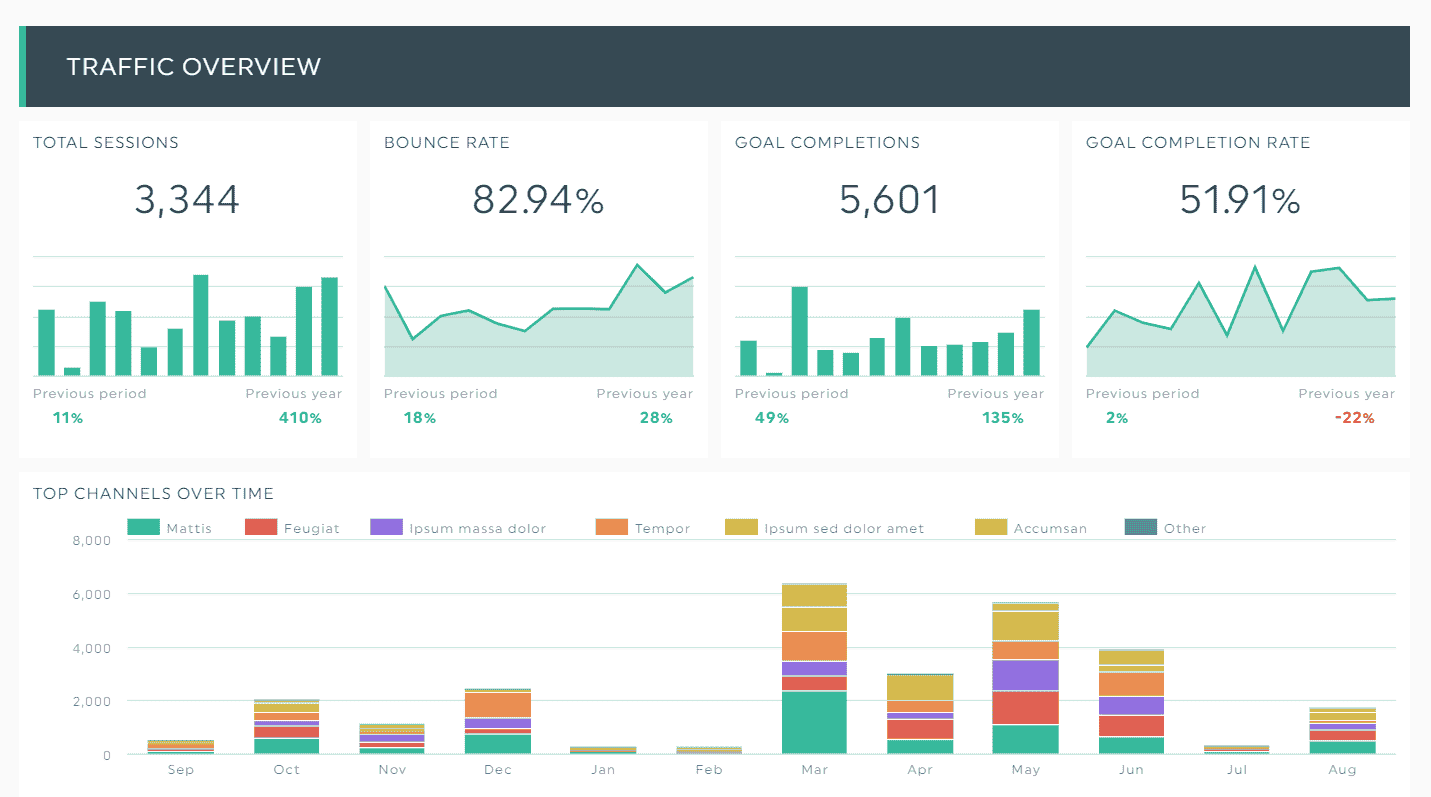
Dashboards are useful in this situation. Dashboards resemble your car's dashboard. You check your speedometer, warning lights, and fuel gauge instead of delving into the engine to determine what's wrong. You can tell right away if everything is going well or if something needs to be fixed.
Similar to this, data dashboards organize the appropriate metrics, graphs, and charts so you can monitor performance, identify trends, and make decisions without being bogged down in the statistics.
Why Plotly?
Dashboards may be made with a variety of technologies, including Tableau, Power BI, and even Google Data Studio. Therefore, why use Plotly?
- The problem is that Plotly is the logical next step if you are currently using Python, whether for data analysis, machine learning, or simply learning to code.
- It is interactive: Click around, zoom in, filter, and hover over spots. Plotly feels like a real-time discussion, while static charts resemble a printed newspaper.
- It is adaptable; templates are not a requirement. Plotly can likely create every type of chart you can think of, including maps, scatter plots, and 3D surfaces.
- Shareable: Create it once, launch it as a web application, and send everyone the link.
- It's all Python: To get a dashboard online, you don't need to know HTML or JavaScript.
Plotly really has two sides:
- Plotly Express: a quick, high-level way to make charts.
- Dash: a framework that lets you arrange those charts into a full dashboard.
Think of it this way: Plotly Express is your art supplies, and Dash is the canvas where you arrange them into something meaningful.
Step 1: Your first chart
Let’s start with the basics. Imagine you run a small shop selling shoes, shirts, pants, and hats. You’ve got sales numbers for each.
In a few lines, Plotly can turn that into a bar chart:
Copy Code
import plotly.express as px


data = {

    "Product": ["Shoes", "Shirts", "Pants", "Hats"],

    "Sales": [120, 90, 60, 30]

}


fig = px.bar(data, x="Product", y="Sales", title="Sales by Product")

fig.show()
Run it, and you’ll see a crisp bar chart where you can hover over each bar to see details. Already, this feels more alive than Excel’s default charts.
Step 2: Wrapping it in a dashboard
Now let’s take that chart and put it into a dashboard with Dash.
Copy Code
from dash import Dash, dcc, html


app = Dash(__name__)


app.layout = html.Div([

    html.H1("My Sales Dashboard"),

    dcc.Graph(figure=fig)

])


app.run_server(debug=True)
When you run this, Dash opens your browser to a simple webpage with your chart and a title. It’s not flashy yet, but it’s the skeleton of a real dashboard.
Step 3: Adding interactivity
Dashboards shine when they respond to you. Let’s say you want to filter sales by product category using a dropdown.
from dash import Input, Output
Copy Code
app.layout = html.Div([

    html.H1("Interactive Dashboard"),

    dcc.Dropdown(

        id="product-dropdown",

        options=[{"label": p, "value": p} for p in data["Product"]],

        value="Shoes"

    ),

    dcc.Graph(id="sales-chart")

])


@app.callback(

    Output("sales-chart", "figure"),

    Input("product-dropdown", "value")

)

def update_chart(selected):

    filtered = {

        "Product": [selected],

        "Sales": [data["Sales"][data["Product"].index(selected)]]

    }

    return px.bar(filtered, x="Product", y="Sales", title=f"Sales for {selected}")
Now when you pick “Shirts” or “Pants” from the dropdown, the chart updates instantly. That’s interactivity in action.
Building bigger dashboards
A real dashboard usually has multiple charts:
- A line chart showing sales over time
- A bar chart of top products
- A map of regional sales
- Maybe a table of recent transactions
Dash makes this possible by stacking components in your layout. You can arrange them side by side, add tabs, or use sliders and checkboxes to let people control what they see.
Example layout idea:
Copy Code
app.layout = html.Div([

    html.H1("Sales Dashboard"),

    html.Div([

        dcc.Graph(id="sales-over-time", figure=fig1),

        dcc.Graph(id="top-products", figure=fig2)

    ], style={"display": "flex"}),

    dcc.Graph(id="regional-sales", figure=fig3)

])
Each graph is powered by its own figure, and you can link them together with callbacks. Click a product in one chart, and another chart updates to show only that product’s sales across regions.
Styling matters
A disorganized dashboard is as horrible as one that isn't there. Make room for your images. Put similar charts together. Make use of colors that are consistent. Dash enables you to modify layouts using basic CSS styles.
For instance, two charts with display settings of flex and width of 48% can be placed side by side. Making something clean doesn't require you to be a designer.
Real-world use cases
Here’s where dashboards really shine:
- Marketing: Track campaigns, see which ads perform best, and monitor customer engagement.
- Healthcare: Watch patient admissions, bed availability, and wait times in real time.
- Education: Teachers can see attendance trends, grades by subject, and student progress at a glance.
- Finance: Investors can monitor stock prices, portfolio performance, and market news feeds.
- Startups: Founders can track monthly revenue, churn rate, and signups—all in one place.
What this really means is: if you’ve got data, you can turn it into a dashboard that makes it easier to act on.
Common mistakes beginners make
- Too much on one screen: Don’t cram in every possible chart. Pick the ones that matter.
- Messy data: Clean your data before feeding it into a dashboard. Dashboards aren’t magic fixers.
- Performance issues: Large datasets can slow things down. Use smaller samples or server-side filtering.
- Poor layout: If it looks cluttered, people won’t use it.
Why it’s worth learning
Dashboards are the type of project that shows you're doing more than just learning syntax while you're studying Python using Uncodemy or another resource.
Imagine bringing up a live dashboard you created during an interview. Instead of saying, “I know Python,” you’re showing, “I can turn raw data into insights people actually understand.” That has a lot of power.
Dashboards can improve your personal life even while you're not working. Keep tabs on your own spending plan. Make your fitness statistics visually appealing. Observe side projects. After creating a single dashboard, you begin to see opportunities everywhere.
Tips to keep in mind
- Start with one chart. Add more only when it makes sense.
- Use Plotly Express first—it’s simple. Move to Plotly Graph Objects only if you need deep customization.
- Keep your callbacks small and focused. Don’t write giant spaghetti functions.
- Look at examples. Plotly’s own gallery is packed with ideas you can copy and adapt.
Wrapping up
There is more to using Plotly to create dashboards than just charts. Clarity is key. It all comes down to making data understandable to both you and other people.
With Plotly, you can create interactive apps and go beyond static reporting without ever leaving Python. Dashboards provide a visual and instantaneous transition from "I have data" to "I understand what's happening."
Start small if you've never built one before. Create the bar graph. Put Dash around it. Include a drop-down menu. You'll arrive at something that feels finished piece by piece.
You'll discover that this isn't merely a technical exercise, but rather a talent that can be applied in a variety of settings, including boardrooms, classrooms, and your own side projects.
So install Plotly. Fire up Dash. And start turning numbers into stories worth sharing.