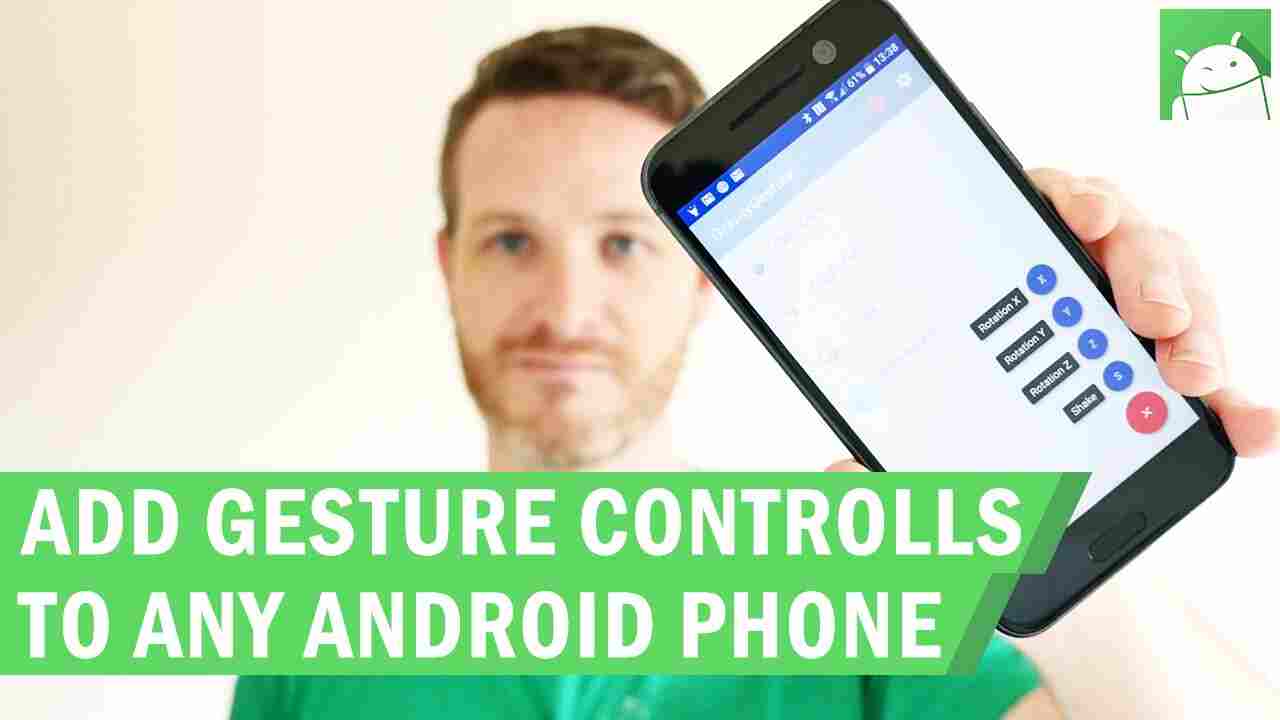
- Imagine an app where you can:
-
- Swipe left to delete a message.
- Pinch to zoom in on a photo.
- Shake your phone to undo a typo.
- These small, intuitive actions make the app feel alive. It’s no longer just a tool—it’s an extension of your hand. Users don’t have to think; they just interact naturally. That’s the power of gestures.
Understanding gestures
- Before adding gestures, you have to know what they are. In mobile apps, common gestures include:
- Tap:Simple touch. The bread and butter of every app.
- Double Tap: Often used for liking or zooming.
- Swipe: Left, right, up, or down—great for navigation or dismissing content.
- Pinch/Spread: For zooming in/out.
- Long Press: Opens additional options or menus.
- Drag: Moving items around the screen.
- Each gesture communicates something different. Choosing the right one can make your app feel intuitive instead of clunky.
How to implement gestures
- Here’s where the magic happens. You don’t need to reinvent the wheel. Mobile platforms provide frameworks that make this easier:
- iOS: Apple’s UIKit or SwiftUI have built-in gesture recognizers. You attach a recognizer to a view, and it triggers a function when the gesture is detected.
- Android: You can use GestureDetector and OnTouchListener to detect taps, swipes, and more.
- Cross-platform: Flutter and React Native also have gesture-handling libraries.
- The basic idea is always the same:
- Identify the gesture.
- Link it to an action in your app.
- Test it until it feels natural.
Start simple, then expand
- One mistake beginners make is trying to cram too many gestures into an app. Don’t do that. Start with the gestures your users will use the most.
- For example, if you’re building a photo gallery app:
- Swipe to move between photos.
- Pinch to zoom.
- Long press to see options.
- Later, once these feel smooth, you can experiment with multi-finger gestures or shake interactions.
Why this matters for UX
- Gestures aren’t just a tech feature—they’re a UX win. A smooth swipe or pinch makes the app feel responsive, modern, and engaging. Users don’t notice gestures consciously; they just feel that the app “works like magic.”
- That’s why at Uncodemy, we push students to focus on the experience, not just the implementation. An app with gestures that feel awkward or unresponsive is worse than no gestures at all.
Real-world example
- At Uncodemy, one student built a note-taking app with gesture controls. Swipe left to delete notes, swipe right to archive, tap and hold to edit.
- After a week of testing, they noticed something: users were using the gestures more than the buttons. The app felt faster, cleaner, and even fun to use. That’s the power of gestures—small design decisions that completely change the feel of an app.
Tips for success
- Consistency: Don’t mix gestures for the same action. If swipe left deletes, don’t let swipe right also delete something else.
- Feedback: Provide visual or haptic feedback when gestures are recognized. Users need to feel that the action happened.
- Accessibility: Not everyone can perform complex gestures. Make sure there are alternatives for people with motor challenges.
Wrapping it up
- Adding gesture controls isn’t just a coding trick—it’s about making your app feel alive. Done right, gestures make apps intuitive, efficient, and fun to use.
At Uncodemy, we teach students not just to code gestures, but to think like users. Because a gesture is only as good as the experience it creates.