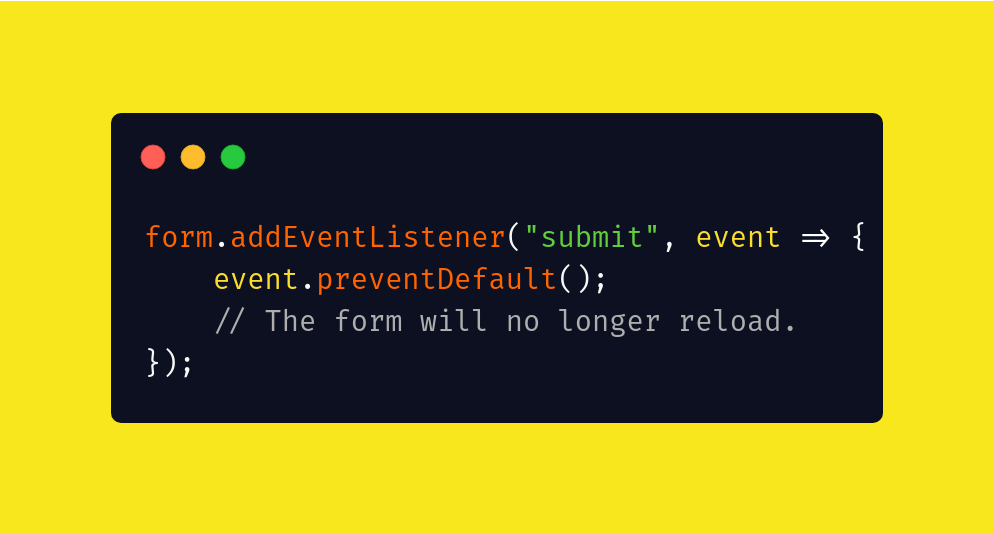
For example, clicking a link usually redirects the user to a new page, or submitting a form automatically refreshes the page. But what if you want to stop these default actions and handle them differently with your own logic? This is where preventDefault() comes in.
In this blog, we’ll explore what default behavior means, how event.preventDefault() works, real-world use cases, examples with code, and best practices every developer should know.
What is Default Behavior in JavaScript?
Every browser defines default behaviors for specific events. These behaviors are predefined actions that take place automatically when an event occurs, without requiring additional JavaScript.
Some common default behaviors are:
- Clicking an <a> tag navigates to another URL.
- Submitting a form reloads the page.
- Pressing the spacebar scrolls the page down.
- Right-clicking opens the context menu.
While these defaults are useful, they may conflict with the logic of your web application. In such cases, developers need a way to stop or override the browser’s default behavior.
The preventDefault() Method
The preventDefault() method is provided by JavaScript’s Event interface. When invoked on an event, it tells the browser: “Do not execute the default action associated with this event.”
Syntax:
event.preventDefault();
Here, event is the object automatically passed to the event handler when an event occurs. Calling preventDefault() ensures the associated browser behavior is suppressed.
Common Use Cases of preventDefault()
Let’s go through practical scenarios where developers frequently use preventDefault().
1. Preventing Link Navigation
Imagine you want to capture a click on a link and handle it with JavaScript, instead of allowing the browser to navigate away.
Copy Code
<a href="https://example.com" id="myLink">Click Me</a>


<script>

document.getElementById("myLink").addEventListener("click", function(event) {

    event.preventDefault();

    console.log("Navigation prevented. Handling with JavaScript.");

});

</script>
In this case, clicking the link won’t take the user to the URL. Instead, you can define custom logic like opening a modal or fetching data via AJAX.
2. Preventing Form Submission
By default, submitting a form reloads the page. In modern web apps, we often want to handle form data dynamically using JavaScript and AJAX without reloading.
Copy Code
<form id="myForm">

  <input type="text" placeholder="Enter name" required>

  <button type="submit">Submit</button>

</form>


<script>

document.getElementById("myForm").addEventListener("submit", function(event) {

    event.preventDefault();

    console.log("Form submission prevented. Processing with JS...");

    // Custom logic like sending data to server

});

</script>
Here, preventDefault() ensures the form does not trigger a full page reload.
3. Preventing Keyboard Shortcuts or Scroll
If you want to prevent keys like spacebar or arrow keys from scrolling the page, you can use preventDefault().
Copy Code
document.addEventListener("keydown", function(event) {

    if (event.code === "Space") {

        event.preventDefault();

        console.log("Spacebar pressed but scroll prevented.");

    }

});
This is useful in web-based games or apps where custom key handling is required.
4. Preventing Right-Click Context Menu
Sometimes, developers want to disable the right-click context menu to protect images or content.
Copy Code
document.addEventListener("contextmenu", function(event) {

    event.preventDefault();

    console.log("Right-click disabled.");

});
While this improves control, it should be used carefully as it may affect user experience.
Difference Between preventDefault() and stopPropagation()
A common confusion arises between preventDefault() and stopPropagation().
- preventDefault(): Stops the browser’s default action (e.g., preventing a form from submitting).
- stopPropagation(): Stops the event from bubbling up or capturing down the DOM tree.
These two methods serve different purposes but can be used together when needed.
Example:
Copy Code
document.getElementById("btn").addEventListener("click", function(event) {

    event.preventDefault();

    event.stopPropagation();

    console.log("Custom behavior only, no bubbling and no default action.");

});
Real-World Scenarios
1. Custom Validation in Forms: Prevent form submission until specific validation rules are met.
2. Single Page Applications (SPA): Prevent link navigation to ensure routing is handled by JavaScript frameworks.
3. Interactive Components: Prevent scrolling, dragging, or context menu actions while customizing user experience.
4. Games: Prevent arrow keys or spacebar from scrolling the screen during gameplay.
Best Practices for Using preventDefault()
- Use Only When Necessary: Don’t disable default actions unnecessarily, as it can harm user experience.
- Combine with Validation: If preventing form submission, ensure meaningful feedback is provided to users.
- Always Handle Gracefully: Inform users why the default action was prevented (for example, showing a message when a form is incomplete).
- Know the Event Type: Some events cannot be canceled. Always check if the event is cancelable before calling preventDefault().
Copy Code
if (event.cancelable) {

    event.preventDefault();

}
Example: Login Form with Validation
Here’s a practical example of using preventDefault() to add custom validation logic to a login form:
Copy Code
<form id="loginForm">

  <input type="text" id="username" placeholder="Username" required>

  <input type="password" id="password" placeholder="Password" required>

  <button type="submit">Login</button>

</form>


<script>

document.getElementById("loginForm").addEventListener("submit", function(event) {

    event.preventDefault();


    const username = document.getElementById("username").value;

    const password = document.getElementById("password").value;


    if (username === "" || password === "") {

        console.log("Fields cannot be empty.");

    } else {

        console.log("Form validated. Proceeding with AJAX login...");

    }

});

</script>
This ensures the page doesn’t reload until the form passes validation checks.
Conclusion
The preventDefault() method in JavaScript is a powerful tool for developers to take full control over how applications respond to user actions. From preventing form submissions and link navigations to customizing user interactions in games and SPAs, it plays a crucial role in modern web development.
However, it should be used wisely. Always balance between preventing default actions and maintaining a natural, intuitive user experience. By mastering preventDefault(), you can create smooth, interactive, and efficient web applications tailored exactly to your needs.
FAQs
Q1. What is the difference between preventDefault() and return false?
preventDefault() only cancels the default browser behavior, while return false cancels the default action and stops the event from propagating in older jQuery-style event handling.
Q2. Can every event be prevented with preventDefault()?
No, only events marked as cancelable can be prevented. Always check event.cancelable.
Q3. Is it good practice to disable right-click with preventDefault()?
Generally, no. While possible, it can frustrate users. It’s better to secure content through server-side methods.
Q4. Do I always need to use preventDefault() with forms?
Not always. Use it only when handling submission with JavaScript, like AJAX.
Q5. Can preventDefault() improve performance?
Indirectly, yes. By controlling event behavior, you can reduce unnecessary reloads or redirects, leading to a smoother user experience.
👉 If you want to master JavaScript with practical projects and industry-level training, check out Uncodemy’s JavaScript Course. It’s designed to take you from beginner to advanced with real-world coding experience.