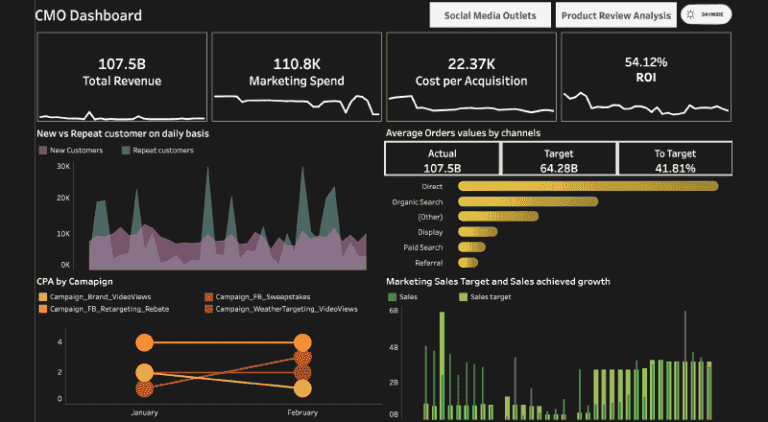
Tableau allows professionals to turn complex datasets into interactive and easy to understand dashboards. These dashboards not only highlight patterns and trends but also help businesses make informed decisions faster. Whether you are a data analyst, business intelligence professional, or a manager, mastering Tableau is an essential skill.
In this blog, we will explore in detail how to use Tableau to create advanced visual dashboards. We will begin with the basics, move on to creating dashboards, and then dive into advanced features that make Tableau such a popular tool.
Introduction to Tableau
Tableau is a data visualization and business intelligence software that helps users analyze data and present it in a visually appealing and interactive format. It can connect to multiple data sources such as Excel spreadsheets, SQL databases, or cloud platforms, and then allow you to build dashboards through a simple drag and drop interface.
The beauty of Tableau lies in its ability to simplify complexity. You do not need to be a programmer to use Tableau effectively. At the same time, advanced users can create highly sophisticated dashboards by applying calculated fields, parameters, and actions.
Why Tableau for Dashboards
Dashboards are visual representations of data that combine multiple charts, graphs, and metrics into a single screen. While many tools allow dashboard creation, Tableau stands out because of its:
- Ease of use with drag and drop functionality.
- Interactive capabilities that allow filtering, drilling down, and exploring data dynamically.
- Integration with multiple data sources without requiring complex coding.
- Scalability for both small businesses and enterprise level solutions.
- Community support and constant updates from Tableau developers.
With these features, Tableau has become the preferred choice for professionals looking to build both simple and advanced dashboards.
Getting Started with Tableau
Before you create advanced dashboards, you need to understand the basics of Tableau.
- Download and Install Tableau: Tableau offers Tableau Desktop for professional use and Tableau Public for free learning and sharing.
- Connect to a Data Source: You can connect to Excel files, databases like MySQL or PostgreSQL, cloud platforms like Google BigQuery, or web data connectors.
- Understand the Workspace: The Tableau workspace includes the data pane, shelves for placing dimensions and measures, the toolbar, and the canvas where your visualization appears.
- Create Simple Visualizations: Start by dragging fields onto rows and columns, then choose chart types such as bar graphs, line charts, or pie charts.
Once you are comfortable with these basics, you are ready to move toward building dashboards.
Creating a Basic Dashboard in Tableau
A dashboard in Tableau is essentially a collection of views or worksheets presented together. To create a dashboard:
- Open a New Dashboard: In Tableau Desktop, select the Dashboard tab and then “New Dashboard.”
- Add Worksheets: Drag worksheets you have created onto the dashboard. Each worksheet can be a chart, graph, or table.
- Arrange and Resize: Adjust the layout to fit the information clearly. Tableau provides floating and tiled options for placing elements.
- Add Filters and Legends: Place filters or legends that allow viewers to interact with the data.
- Preview and Publish: Once satisfied, preview the dashboard for clarity and publish it to Tableau Server or Tableau Public.
This forms the foundation. Next, let us look at advanced techniques that transform a simple dashboard into a powerful analytical tool.
Advanced Features for Visual Dashboards
1. Calculated Fields
Calculated fields allow you to create new data fields based on existing ones. For example, you can calculate profit ratio from revenue and cost. Adding calculated fields makes your dashboard more meaningful by including metrics not originally present in the dataset.
2. Parameters
Parameters are dynamic values that allow users to control input. For instance, a parameter can let a viewer switch between sales data of different regions or time periods. Parameters increase flexibility and customization in dashboards.
3. Actions
Tableau provides three main types of actions: filter actions, highlight actions, and URL actions. These actions allow interactive behavior. For example, clicking on a bar chart can filter related data in another chart. This makes dashboards dynamic and engaging.
4. Advanced Chart Types
Beyond bar and line charts, Tableau supports advanced visualizations such as heat maps, tree maps, scatter plots, box plots, and Gantt charts. These advanced charts help present multi dimensional data in intuitive ways.
5. Storytelling with Dashboards
Tableau allows the creation of “stories,” which are sequences of dashboards arranged in a narrative flow. This feature is especially useful for presentations where you want to guide the audience step by step through the analysis.
6. Dashboard Design Principles
Advanced dashboards require not only technical skills but also design thinking. Key principles include:
- Keeping the layout clean and uncluttered.
- Using consistent colors and fonts.
- Highlighting key metrics clearly.
- Ensuring dashboards are mobile friendly when needed.
By applying these principles, you enhance usability and ensure that stakeholders can focus on insights rather than struggling to interpret visuals.
Building an Advanced Dashboard Step by Step
Let us consider an example of building an advanced sales performance dashboard.
- Connect to Data: Use a dataset containing sales, profit, region, and product information.
- Create Worksheets:
- A line chart showing sales over time.
- A bar chart comparing sales by region.
- A scatter plot of sales versus profit to identify high performing products.
- Create Calculated Fields: Add a profit margin field for deeper insights.
- Add Parameters: Create a parameter allowing users to switch between viewing monthly or yearly sales.
- Use Actions: Set a filter action so that clicking a region in the bar chart filters data in the scatter plot.
- Combine Worksheets: Place these charts in a dashboard with a clean layout.
- Design and Refine: Add filters, legends, and consistent color schemes. Test interactivity to ensure smooth user experience.
- Publish: Share the dashboard on Tableau Server so managers can explore performance insights interactively.
This step by step process showcases how advanced dashboards bring multiple pieces of data into one coherent view.
Best Practices for Advanced Tableau Dashboards
- Focus on the Audience: Tailor dashboards to the needs of end users. Executives may need high level summaries while analysts may require detailed breakdowns.
- Limit the Number of Views: Too many charts can overwhelm users. Focus on the most relevant metrics.
- Ensure Interactivity: Use filters and actions to give users control over how they explore data.
- Optimize for Performance: Large datasets can slow dashboards. Optimize queries and reduce unnecessary calculations.
- Iterate and Improve: Gather feedback from users and refine dashboards continuously.
Learning Tableau with the Right Guidance
While Tableau is user friendly, mastering advanced dashboard creation requires practice and proper training. For learners who want to build expertise, the Uncodemy Tableau Course is a highly recommended choice. This course covers everything from connecting data sources and creating visualizations to building advanced dashboards with calculated fields, parameters, and interactive actions.
Uncodemy provides real world case studies and hands on projects that help learners understand how Tableau is used in businesses today. By the end of the course, students are capable of designing dashboards that drive decision making and add measurable value to organizations.
Conclusion
Tableau has revolutionized the way businesses understand and act on data. With its ability to create advanced visual dashboards, it empowers professionals to go beyond static reports and engage with data interactively. By mastering features like calculated fields, parameters, and actions, you can design dashboards that tell compelling stories and inspire informed decisions.
Creating advanced dashboards is not just about technical proficiency. It also involves understanding your audience, focusing on usability, and presenting data in a way that aligns with organizational goals. When done effectively, Tableau dashboards can transform raw information into powerful insights that shape business strategy.
If you are serious about building a career in data analytics or business intelligence, learning Tableau is a must. And with structured learning from Uncodemy’sTableau Course in Delhi , you can gain both the technical and practical skills needed to stand out in this competitive field.
Mastering Tableau today will ensure that you remain at the forefront of the data driven revolution tomorrow.